![IAlogopng.png]](https://7163577.hs-sites.com/hs-fs/hubfs/IAlogopng.png?height=40&name=IAlogopng.png)
Note: Required for full screen mode or when screensharing
The quiz must have all the questions on a single page in the designer. The plugin just provides a different view of the questions.
This plugin must be added to each activity page where the One Page Paginate plugin is required.
- Click to download: One Page Paginate Block Code
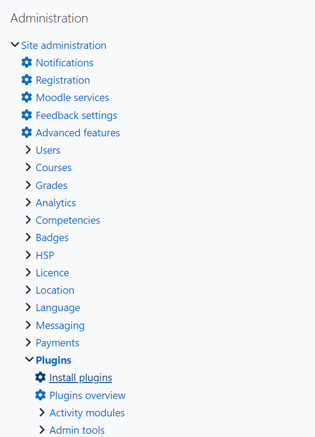
- Select Site Administration
- Select Plugins from the top, horizontal menu, then click Install Plugins.
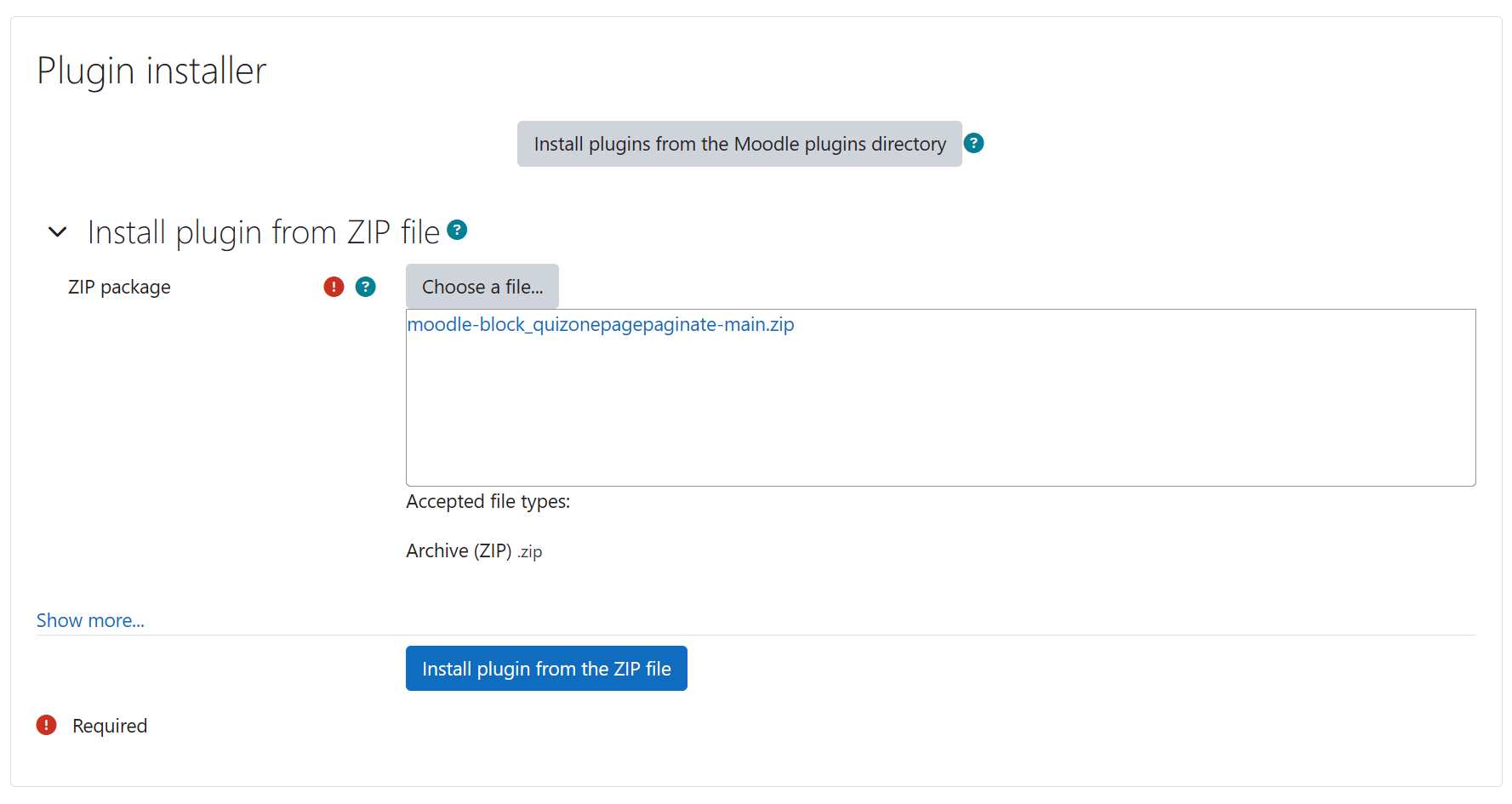
- Drag and drop the downloaded file into the designated box on the Moodle screen and select Install plugin from the ZIP file.
- Navigate to the course for the quiz in which the pagination plugin is to be added.
- Select “Turn editing on” from the box near the top, right of the course screen.

- Click on the activity (e.g.: quiz) within that course that needs the pagination plugin.
- Click on the “+” to select Add a block (this may also appear as a “+ Add a block”, depending on how Moodle has been personalized).
Note: User permission settings may affect whether or not an Admin is able to see the "Add a block" option. - From the listing that pops up, select “One Page Paginate”.

- The One Page Paginate block should now appear on the right side of the page. Click on the cog menu icon and then select "Configure One Page Paginate block".

- On the Configuring a One Page Paginate block page, you can select up to 50 questions from the “Show this many questions at a time” option.
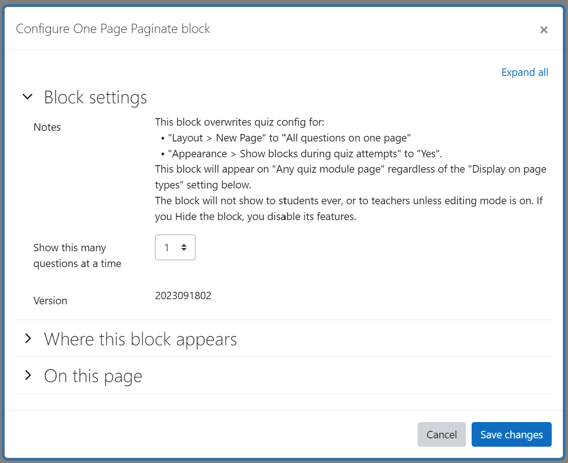
- Select "Save Changes".